The Thursday-Night File Rejection
A screen printer has 300 shirts due Monday. The client sends the logo on Thursday evening. It is a small PNG pulled from a website.
The printer drops it into the art software and zooms in. The edges turn into soft, blocky steps. The colors bleed into each other. Separations will not work.
He emails the client. The client replies Friday morning: "That is the only file we have."
Now the weekend is gone. The shop scrambles for a fix. The deadline tightens.
Everyone is stressed over a file that looked fine on screen.
This story is common. It does not come from bad printers or careless clients. It comes from one gap: most people cannot tell a vector file from a raster file.
This guide closes that gap in plain English. You will learn what each file type is, why files get rejected at the last minute, which format each job needs, and how to fix a weak file fast.

Vector vs. Raster: The Plain-English Difference
Both file types show an image. They build it in completely different ways.
What is a raster file?
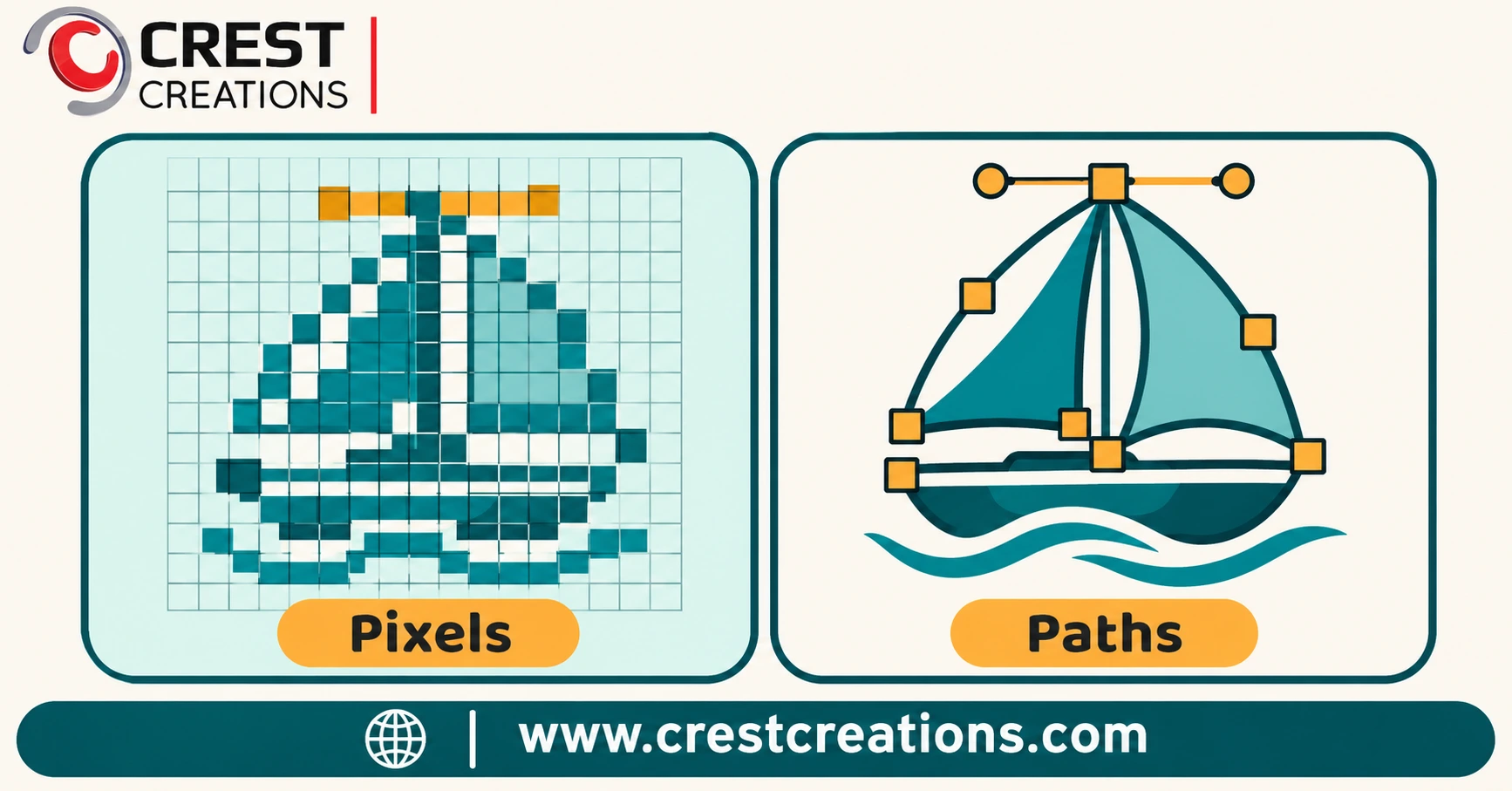
A raster image is a grid of tiny colored squares called pixels. Think of a mosaic. Each tile holds one color. From far away, the picture looks smooth. Up close, you see the tiles.
Common raster formats:
- JPG and JPEG
- PNG
- GIF
- BMP
- TIFF
Raster files have a fixed resolution. Enlarge one, and the software must invent pixels it never had. The result is blur, jagged edges and halos.
What is a vector file?
A vector image is a set of math instructions. It stores points, curves and fills. "Draw a circle here. Fill it with this red." The software redraws the shape at any size.
Common vector formats:
- AI (Adobe Illustrator)
- EPS
- SVG
- PDF (when it holds vector data)
Scale a vector logo from a pen to a billboard. The edges stay crisp every time.
The quick comparison
- Built from: raster uses pixels. Vector uses paths and curves.
- Scaling: raster loses quality. Vector loses nothing.
- File size: raster grows with detail. Vector stays small for logos.
- Best for: raster suits photos. Vector suits logos, text and line art.
- Editing: raster edits pixel by pixel. Vector edits shape by shape.
A quick test
Open the file and zoom in to 400%. If the edges stay sharp, it is likely vector. If you see squares or blur, it is raster. A file named "logo.pdf" or "logo.ai" can still hide a raster image inside, so always test.
Why Files Get Rejected at the Last Minute
Most rejections follow the same few patterns. Spot them early, and you save a weekend.
The usual causes
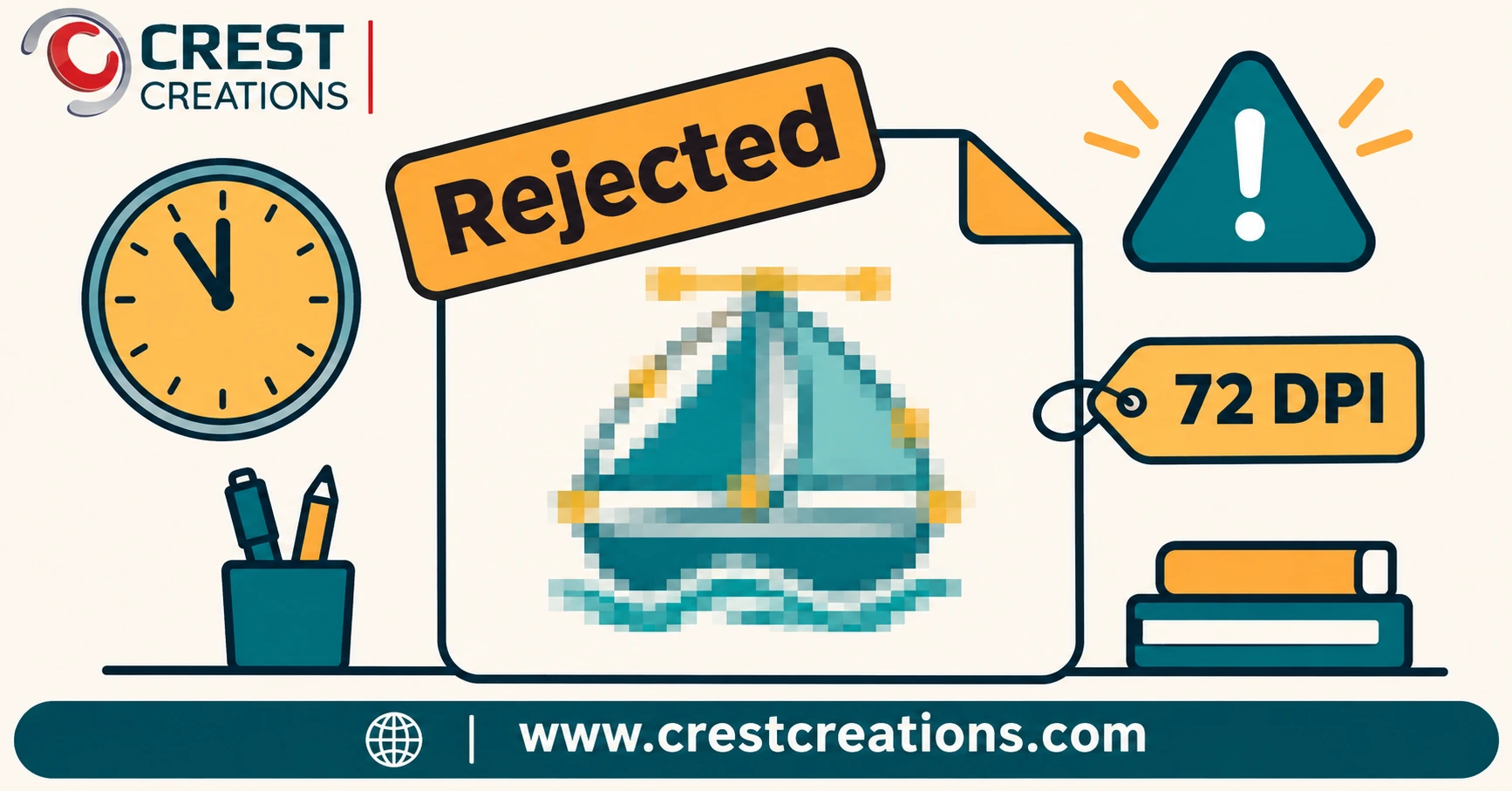
- Low resolution. A web logo at 72 DPI cannot print sharp at 10 inches wide.
- Raster file for a vector job. Screen printing, vinyl cutting and embroidery need clean paths or stitch data.
- Fake vector files. A PDF or AI file that only wraps a JPG inside.
- Too many colors. Gradients and soft shadows break spot-color separations.
- Fonts not outlined. The printer lacks your font, so the text changes.
- Tiny details. Hairlines and small text vanish on fabric or vinyl.
- Compression damage. Each re-save of a JPG adds noise around the edges.
Why the problem shows up so late
The file looks fine on a monitor. Screens are small and forgiving. Trouble starts when production zooms in, separates colors or sends the art to a machine.
Customers also tend to send what they have, not what you need. A logo from a website header or a social profile is built for screens, not for presses.
What a rejection costs you
- Time. Hours of back-and-forth with the client.
- Margin. Rush work, overtime or a lost job.
- Trust. Clients remember late surprises.
- Quality. A rushed fix often looks worse than a planned one.
The fix is simple. Catch the file problem at intake, not at the press.
Which File Type Does Your Job Need?
Not every job needs a vector file. Match the format to the process.
Jobs that need vector
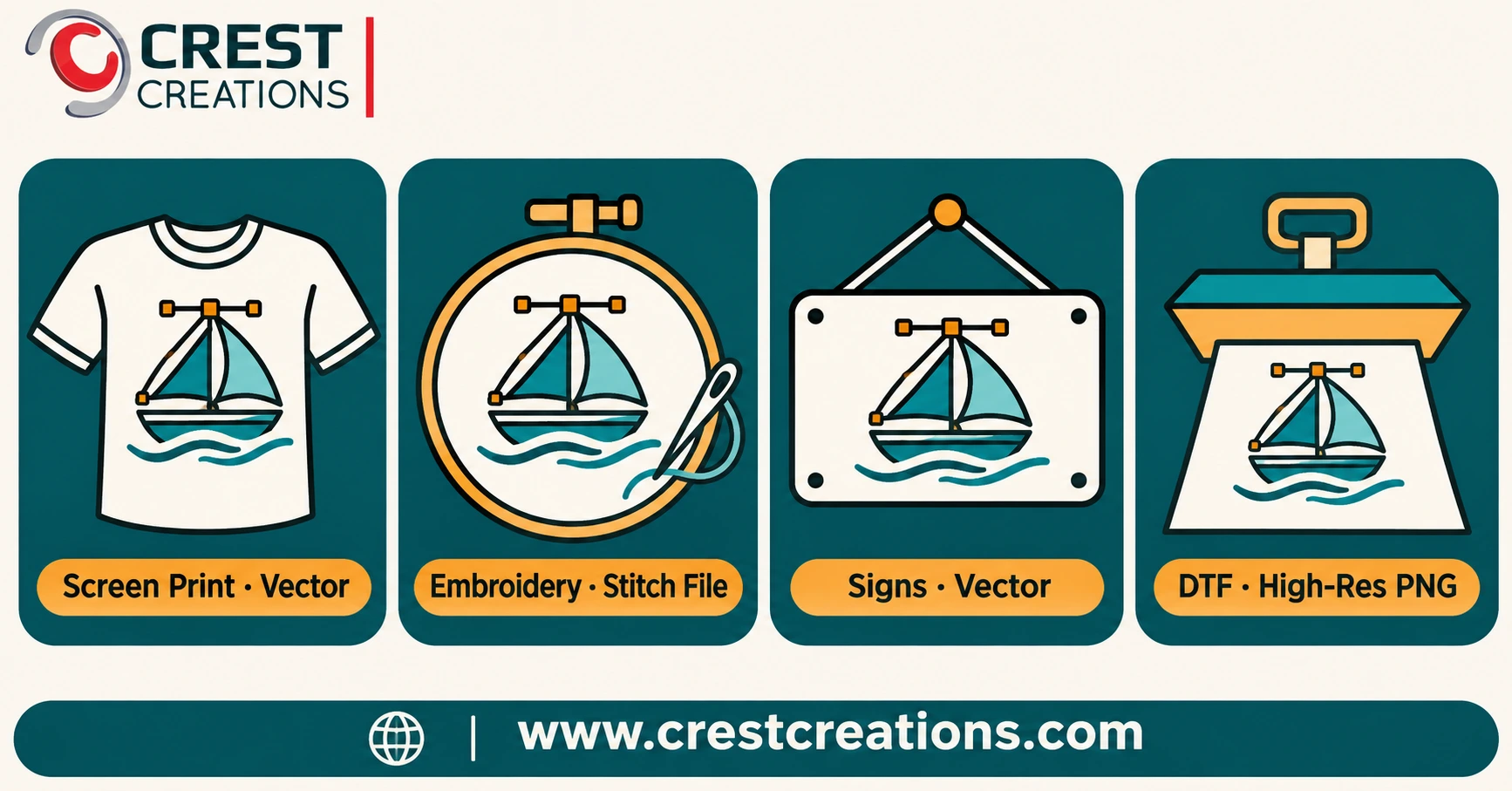
- Screen printing. Clean paths make spot-color separations fast and accurate. Our Vector Artwork Services prepare files built for this.
- Vinyl cutting and signs. Cutters follow paths. A raster image gives them nothing to follow.
- Large-format signs and banners. Vector scales to any size with no blur.
- Logos and brand assets. One vector master serves every use, from pens to trucks.
Jobs that need stitch files
Embroidery machines do not read vector or raster art. They read stitch data. A digitizer builds that data from your artwork, choosing stitch types, density and direction. Start with a clean logo, then use Embroidery Digitizing to turn it into a file that sews cleanly.
Jobs where a high-res raster can work
- DTF and DTG printing. These methods can print detailed raster art, as long as the resolution is high enough.
- Photographic prints. Photos are raster by nature.
- Digital proofs and mockups. A strong PNG or JPG often works here.
A high-resolution raster file can save time and cost on these jobs. Check with your print method before you pay for conversion.
A simple rule of thumb
- Cutting, separating or stitching? Use vector or stitch data.
- Printing full color on a modern direct-to-garment or film process? A high-res raster may do.
- Not sure? Ask your production team before the order goes in.
When the print file needs accurate colors and clean placement, Pre-Press and Virtual Proofs let you check the result before anything hits the press.
How to Fix a Weak Raster File
You have a blurry logo and a deadline. You have three real options.
Option 1: Ask for the original
Ask the client for the vector master. Request AI, EPS, SVG or a vector PDF. Their designer or old printer may still have it. This costs nothing and takes one email.
If the client says they have nothing, move to option 2.
Option 2: Auto-trace it
Tracing software converts pixels to paths in one click. It is fast. It is also risky. Auto-trace often rounds corners, merges colors and leaves hundreds of stray points. Fine text and small details suffer most.
Use it only for rough internal proofs, never for production.
Option 3: Convert it properly
A trained artist rebuilds the artwork as clean vector paths. The result matches the original look, with sharp corners, correct colors and tidy layers. The file works for separations, cutting and any size.
This is what our Vector Artwork Services deliver. Every job is 100% manual work, checked by our team and returned production-ready as AI, EPS, SVG or PDF. Pricing is flat-rate and starts from $4.00 per design. Most files come back within one to two hours.
When the problem is a photo, not a logo
Some files need cleanup instead of conversion. Cluttered backgrounds, rough cutouts and poor color can be fixed with Image and Photo Editing, which starts from $1.99.
Which option should you pick?
- Client has the original: use it.
- Simple rough proof needed today: auto-trace, then replace it before production.
- Job is going to press, a cutter or a screen: convert it properly.
- Photo needs a cleaner look: edit it, do not trace it.
Your File Checklist Before You Say "Send It"
Run every incoming logo through this list. It takes two minutes and prevents most last-minute rejections.
Check the file
- Is the format vector (AI, EPS, SVG) or a true vector PDF?
- Does the art stay sharp at 400% zoom?
- Is the file free of an embedded JPG or PNG?
- If raster, is it at least 300 DPI at final print size?
Check the design
- Are the colors solid, or do gradients and shadows need simplifying?
- Is every line thick enough for the method? Fabric and vinyl need more weight than paper.
- Is text outlined, so fonts cannot change?
- Is the color count suitable for screen printing or embroidery?
Check the plan
- Does the customer approve the artwork before production?
- Does the print method match the file type?
- Is there a proof or mockup for sign-off?
Build the habit
- Add a file-requirements line to every quote email.
- Ask for vector files at order time, not after payment.
- Keep a clean vector master for every repeat client.
- Send risky files for conversion the same day they arrive.
A file problem found on Tuesday is a small task. The same problem found on Friday is a crisis.
Conclusion: Catch the File Before It Catches You
Vector files scale without loss. Raster files do not. Once you know the difference, you can spot a bad file in seconds, match each job to the right format and stop the Thursday-night scramble for good.
The screen printer in our opening story did not need better software. He needed a clean vector file on Thursday, not a panic on Friday.
Ready to turn weak files into production-ready art?
Send us the blurry logo, the tiny PNG or the file you are unsure about. Our team will tell you what it needs and quote it plainly.
- Vector Artwork Services for clean, scalable logos
- Embroidery Digitizing for stitch files that sew cleanly
- Pre-Press and Virtual Proofs for print-ready files and proof approval
- Image and Photo Editing for cleanup and background removal